Setting up Raspberry Pi
This doc describes the installation of Raspberry Pi OS via Ubuntu 20.04LTS There is a Windows version of the raspberry pi imager as well.
Download raspberry pi imager.
snap install rpi-imagerOpen
rpi-imagerand select OS (64bit) and the SD card.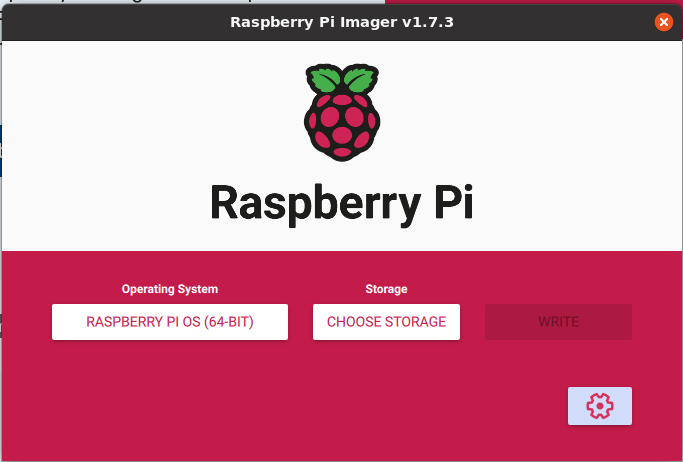
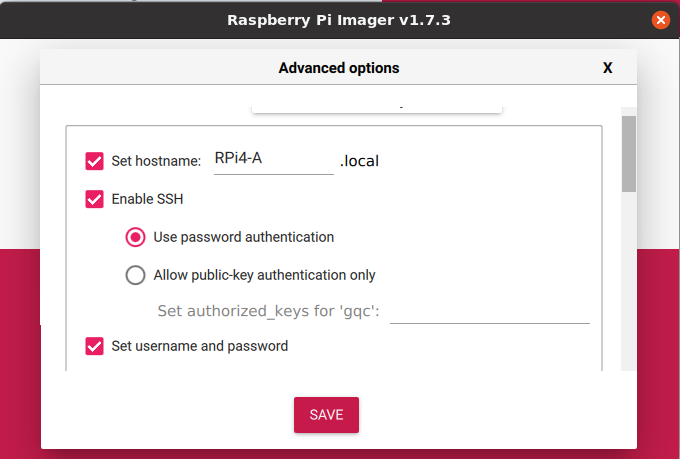
Go to settings and set the properties.
- Hostname: RPi3-B+ (B, C, D etc)
- Username: gqc
- Password: Ubuntu2@22
- Enable SSH
- Then set wifi AP info, etc.
Click
Write. It will burn the OS to the SD card.
Connecting to the Raspberry Pi
To find the IP address of the device. We can use
ping <hostname>.localcommand Eg:ping Rpi4-A.localIn my network it was
192.168.0.27See more info here.
Connect through SSH
sudo ssh gqc@192.168.0.27Upgrade the packages
sudo apt-get update
sudo apt-get upgrade
Setup the timezon
sudo timedatectl set-timezone America/Los_AngelesSetup PostgreSQL (following https://pimylifeup.com/raspberry-pi-postgresql/)
Install PostgreSQL (Current supported version by default is 13)
sudo apt install postgresqlPG13: add superuser gqc with password postgres
createuser gqc -P --interactive
Setup github access (https://general.gqc.com/dev/ssh%20keys%20and%20config#github)
Setup R-Pi to update time automatically from ntp
We've set it up following this article
Notes on installing other software
- Installing Grafana locally. https://friendsoflittleyus.nl/grafana-on-raspberry-pi4/